Вы пытаетесь выбрать регион другой версии сайта. В случае перехода, вам придется набирать товары в корзину заново.

Анализируйте эффективность привлечения по новому отчёту заказов с UTM-метками
В личном кабинете реализован новый отчёт по заказам личной группы, с информацией по UTM-меткам, определяющими источник откуда пришел покупатель.
Отчёт называется «Заказы личной группы (+UTM-метки)», его можно найти в Личном кабинете и по ссылке - Ссылка на отчет.
Отчёт показывает следующую информацию:
· заказы личной группы за выбранный календарный период;
· все неоплаченные заказы личной группы;
· статус заказа, статус оплаты, дата создания/оплаты/выдачи и другие свойства заказа;
· информация о консультанте: ФИО, номер консультанта, контактные данные, дата регистрации;
· UTM-метки заказа.
UTM-метки позволяют получить информацию об источниках трафика. Благодаря новому отчету, вы получаете информацию откуда пришел покупатель сделавший заказ: посты в социальных сетях, рассылка в мессенджерах, email рассылки и другое. Предварительно в ссылку необходимо внести UTM-метки.
Приведём наглядный пример, как добавить UTM метки в ссылку.
Мы решили разместить пост в социальной сети, тема которого посвящена макияжу.
Алгоритм действий
1. Копируем необходимую ссылку с сайта – в нашем случае это категория "Макияж".
! ВАЖНО: не забывайте про реферальность – ссылка должна содержать ваш регистрационный номер. Для этого вы должны быть авторизированы на сайте Faberlic!
На скрине ниже пример со ссылкой, которая содержит регистрационный номер консультанта.
2. Переходим в «генератор UTM-меток». - ссылка на генератор UTM-меток
3. Вставляем ссылку в соответствующее поле.
4. Заполняем параметры UTM-метки вручную или выбираем готовый шаблон.
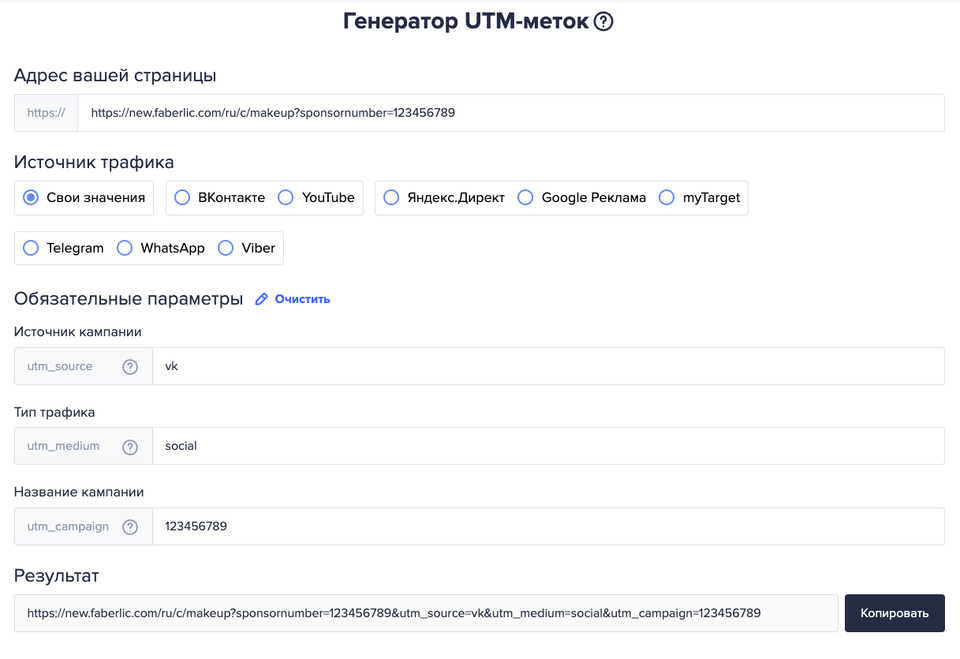
5. Копируем готовую ссылку - размещаем пост с данной ссылкой в соц сети
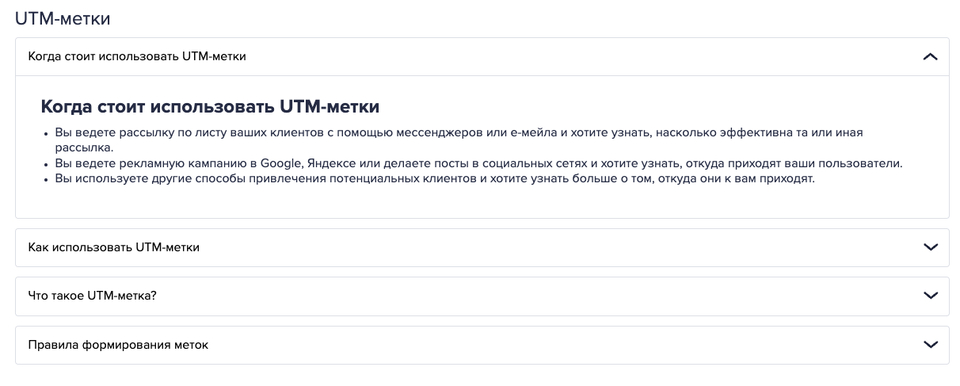
6. На странице генератор UTM-меток меток для вашего удобства имеются подсказки и краткая инструкция
Спустя некоторое время мы решили собрать аналитику и проверить данные в отчёте. Допустим пост был опубликован 01.04.2022, выгружаем отчёт за период с 01.04.2020 по текущее число, в нашем случае – это 06.04.2022.
В выгруженном файле видим все заказы личной группы за выбранный период.
Также видим два заказа с UTM-метками, которые мы использовали в ссылке. Один заказ сделан консультантом, который был зарегистрирован до публикации поста, другой заказ совершён новым консультантом.

Необходимо учитывать, что информация в UTM-метках содержит не только метки, которые размещаете лично вы. Путь пользователя может быть запутанным, он может пройти по нескольким ссылкам до заказа. В результате в отчёте можно встретить метки, используемые компанией или другими консультантами, если по ним переходил покупатель. Отчёт отображает метку последней ссылки, по которой перешёл пользователь, прежде чем совершить заказ.
Для того чтобы отделить свои UTM-метки от меток компании или других консультантов, мы рекомендуем добавлять в метку utm_campaign свой уникальный номер консультанта. Это простое действие, которое позволит вам отслеживать и отфильтровать только свои метки и вести корректную аналитику данных.